What you need
- A Windows 10 or 11 computer that's on during working hours (macOS soon)
- About 1 GB of free space
- Your business email address and access to its account, to make an app password
- One AI: a Claude plan, a key from Anthropic, OpenAI, Google Gemini or xAI Grok, or a local model
- Your website address, if you have one
1. Download and install
Download SuperNova for Business
Get the installer from this site soon. The file is called SuperNova-Business-setup.exe.
Run the installer
Double-click the file and press Install. If Windows shows “Windows protected your PC”, press More info and then Run anyway. This only happens with the first versions, before the app is signed.
Open the app
Look for the night-blue icon with the amber star on your desktop or in the Start menu.
2. The setup wizard
Seven short steps. You can change everything later in Settings.
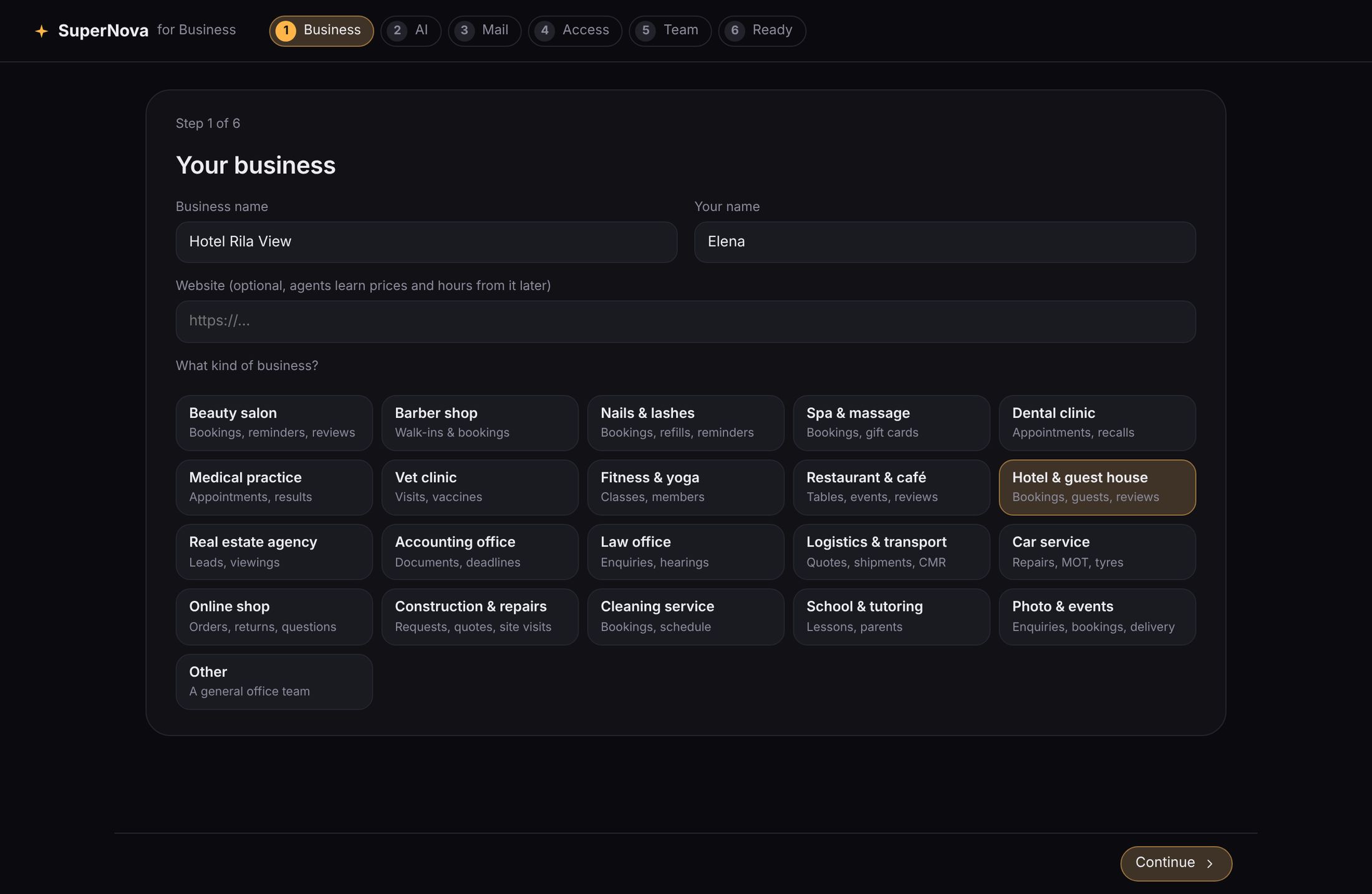
Your business
Name, kind of business (21 kinds) and your website. Press Fill from website to fill in phone, hours, services and prices.
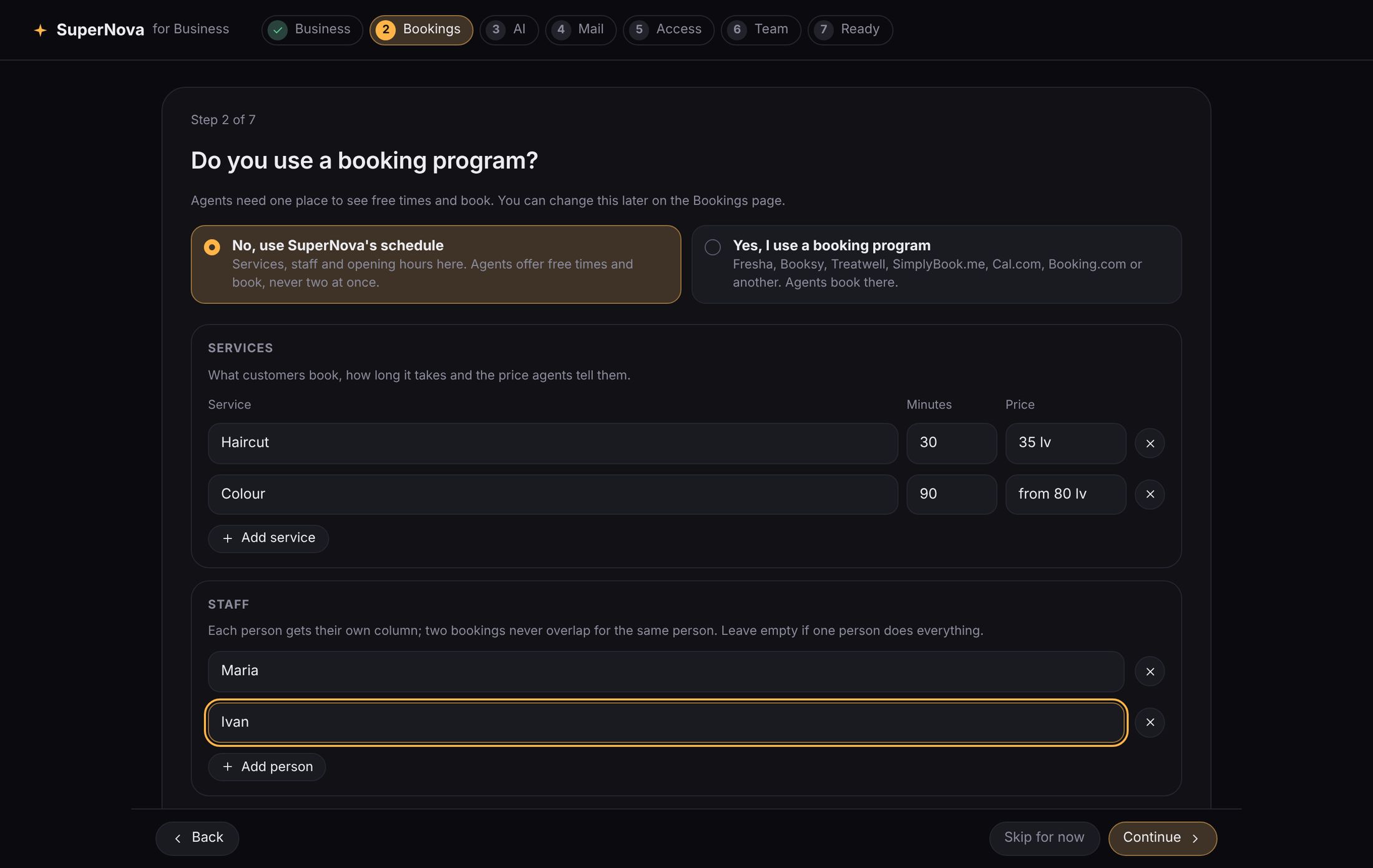
Bookings
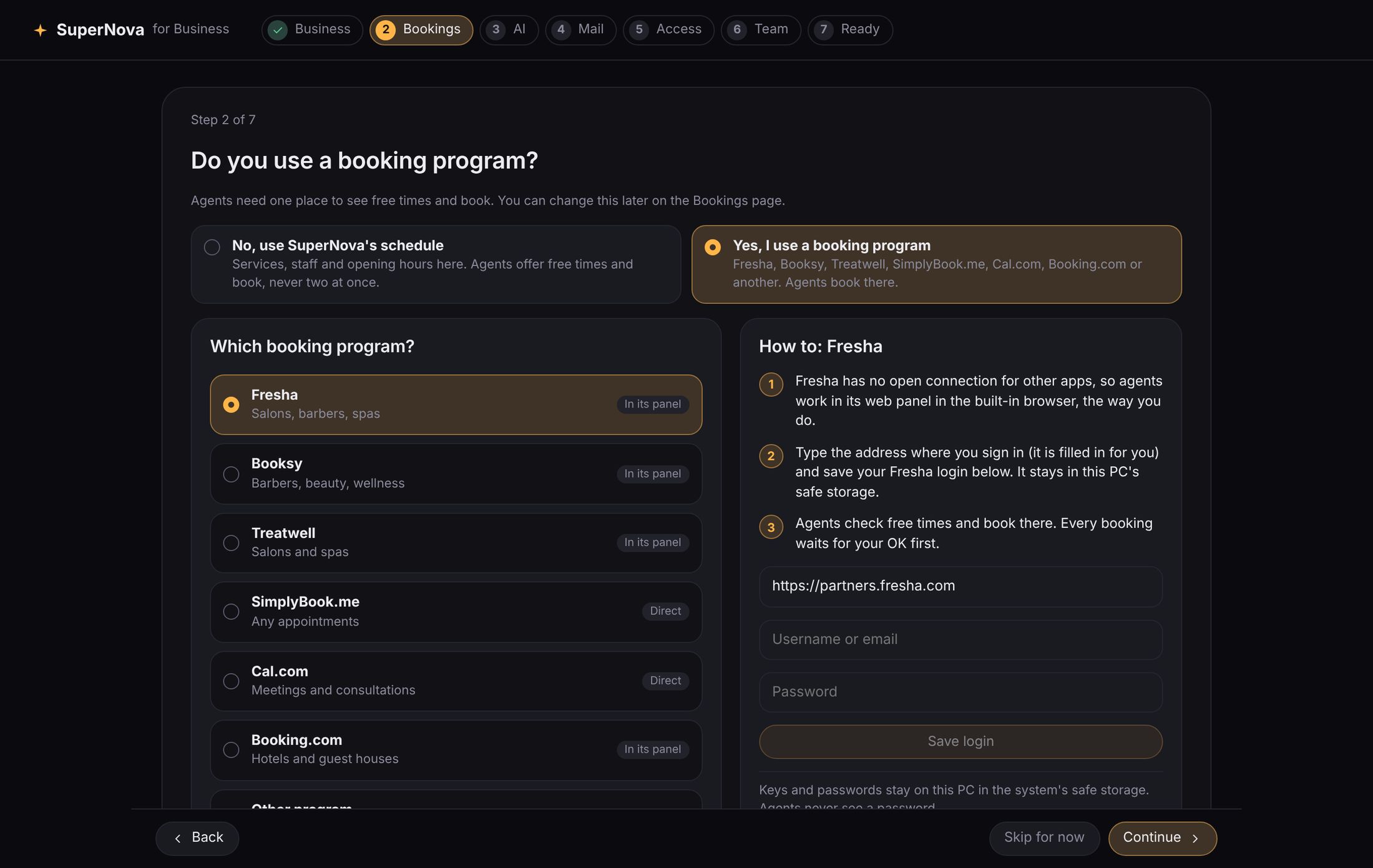
“Do you use a booking program?” Answer No to use SuperNova's own schedule, or pick your program.
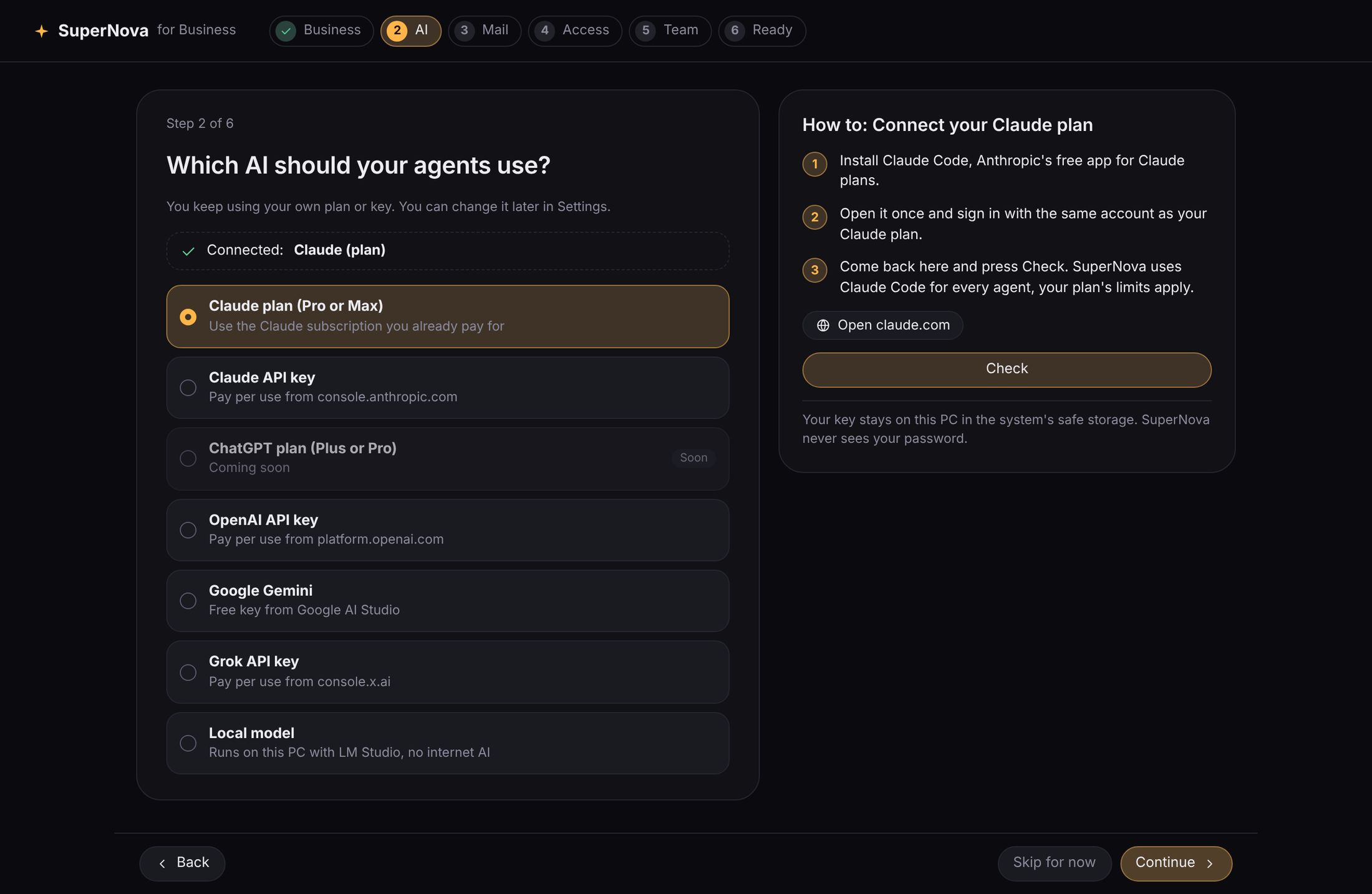
AI
Choose the AI your agents use. The How to panel next to each choice explains it step by step. See Connect your AI.
Access
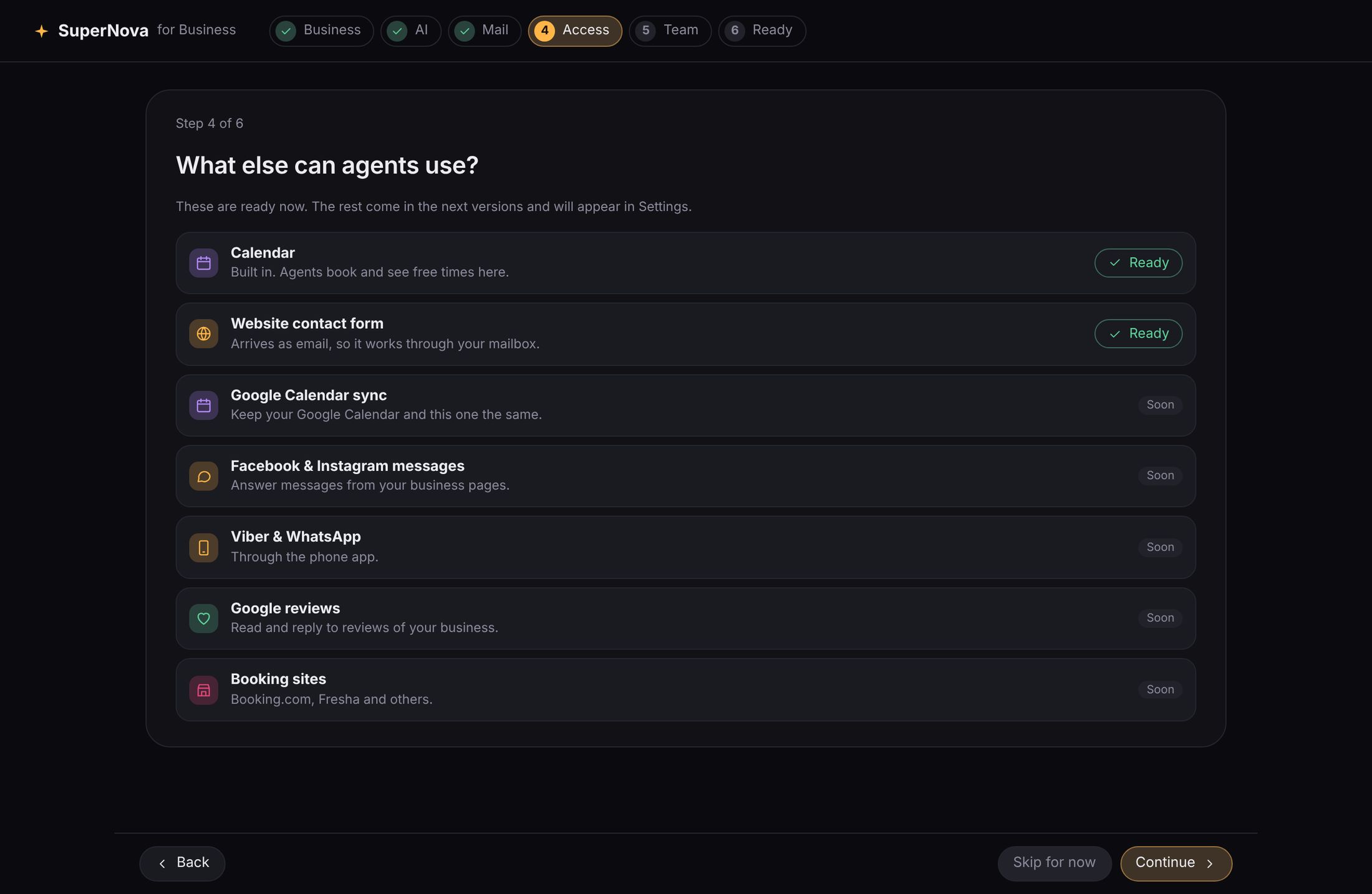
Decide what agents may do on their own and what needs your OK. Payments always need your OK.
Your team
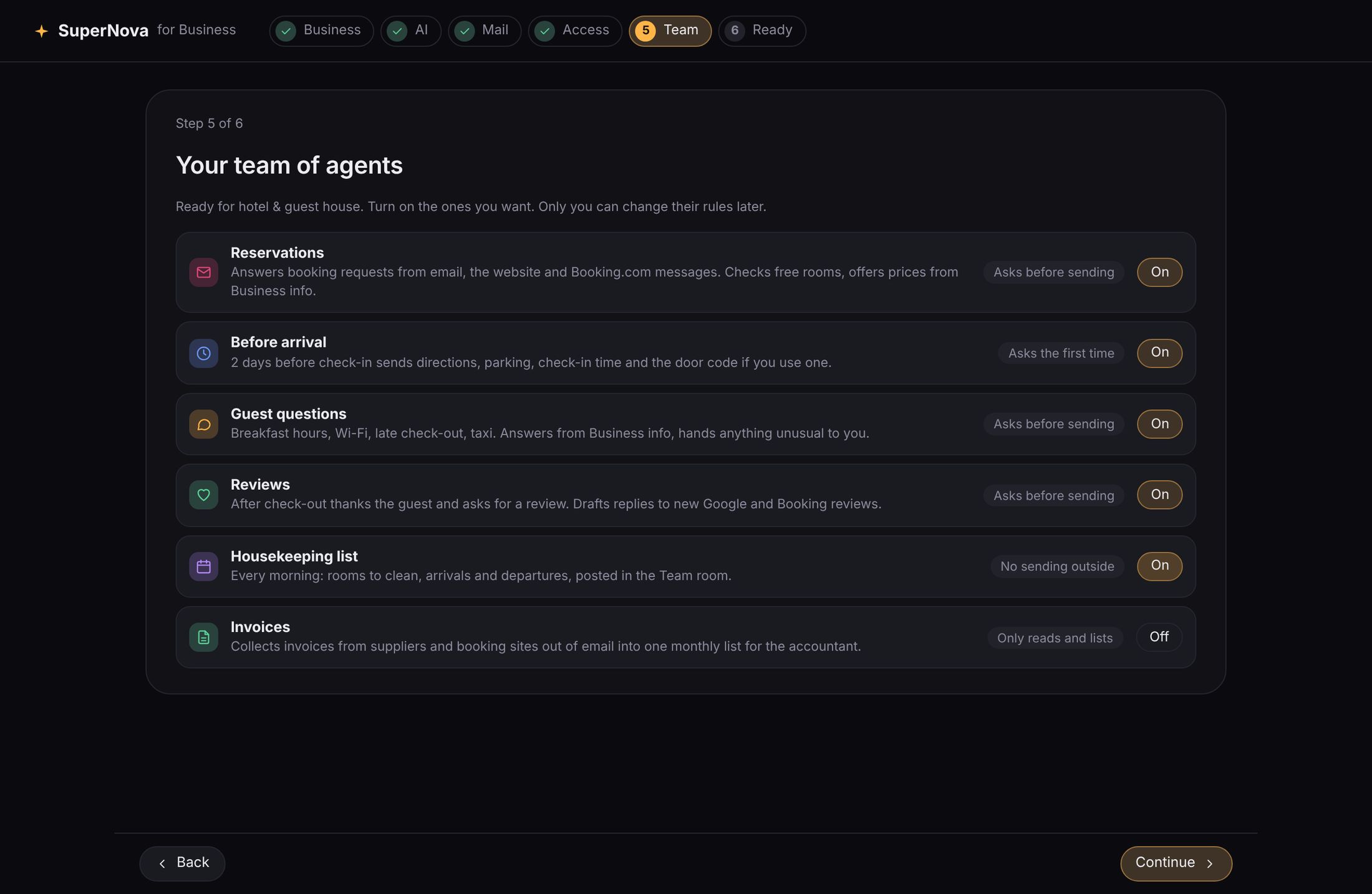
SuperNova suggests a ready team of agents for your kind of business. Keep, remove or rename any of them.
Trial week
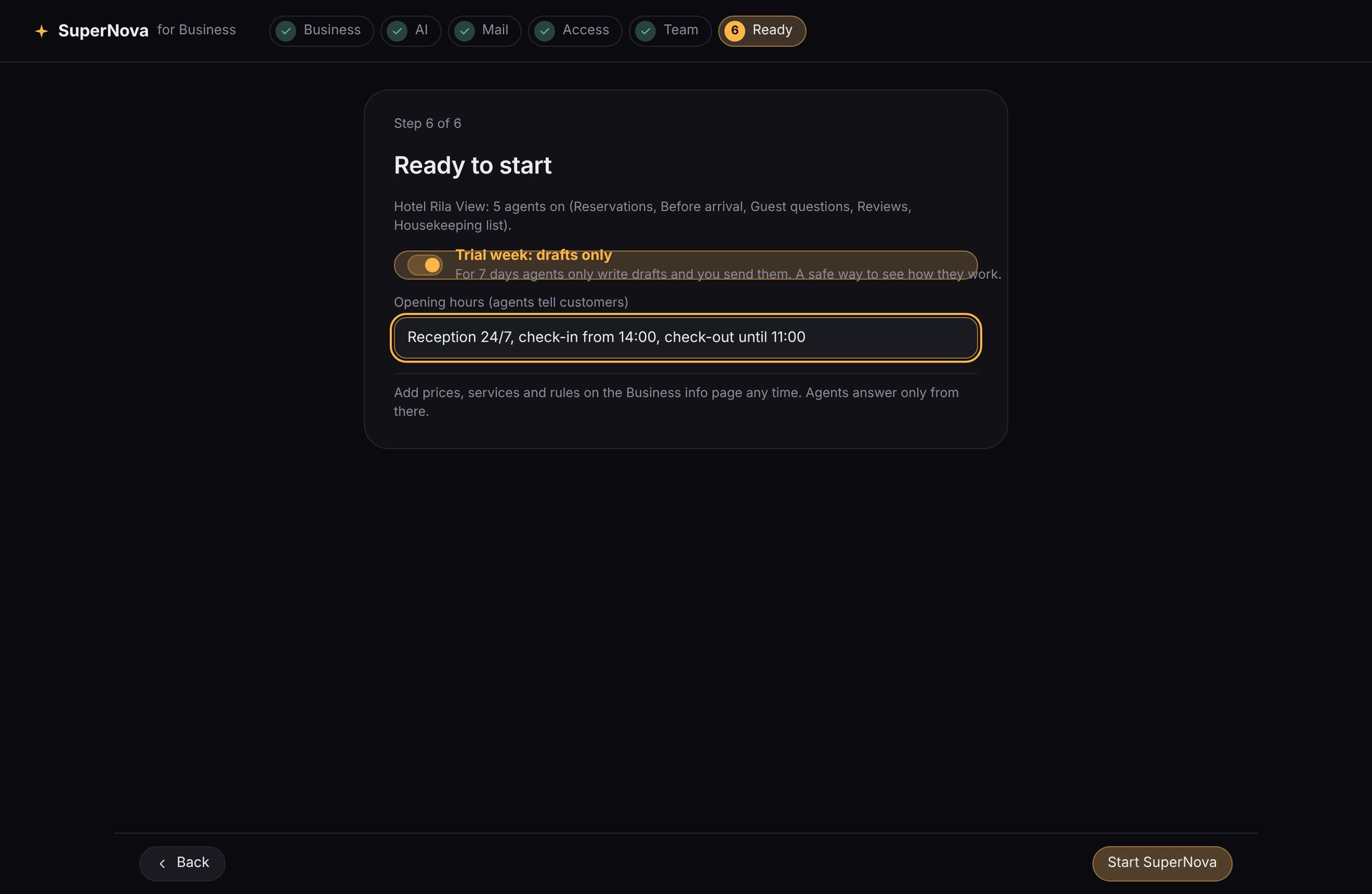
For the first week every agent works in drafts only, so you see how they work before anything is sent.
3. Connect your AI
SuperNova doesn't include or resell AI. It's the app that organises the work; you connect your own AI account and pay your provider directly, with no markup from us. You have three ways, and a subscription is usually the cheapest.
Option 1: a subscription you already pay for (cheapest)
- Claude Pro or Max (works today, recommended): install the official Claude Code app on the same computer (the How to panel has the link), sign in once with your Claude account, then choose “Claude plan” in SuperNova. Agent work is part of your plan and Today shows “Included in your plan”.
- ChatGPT Plus or Pro soon: will connect the same way, through OpenAI's official app.
- Google Gemini (Google AI plans) soon: will connect through Google's official Gemini app.
SuperNova always uses each company's own official app for subscriptions, never your password.
Option 2: an API key (pay per use)
- Open your provider's console (Anthropic, OpenAI, Google AI Studio or xAI) and create a new API key.
- Paste it into SuperNova. It's stored in your computer's keychain, never in a plain file.
- Today and Settings show the cost in your currency, per agent and per day.
Option 3: a local model (free to run)
Point SuperNova to a model running on your computer, for example with Ollama. Nothing leaves the office, but it's slower on ordinary PCs.
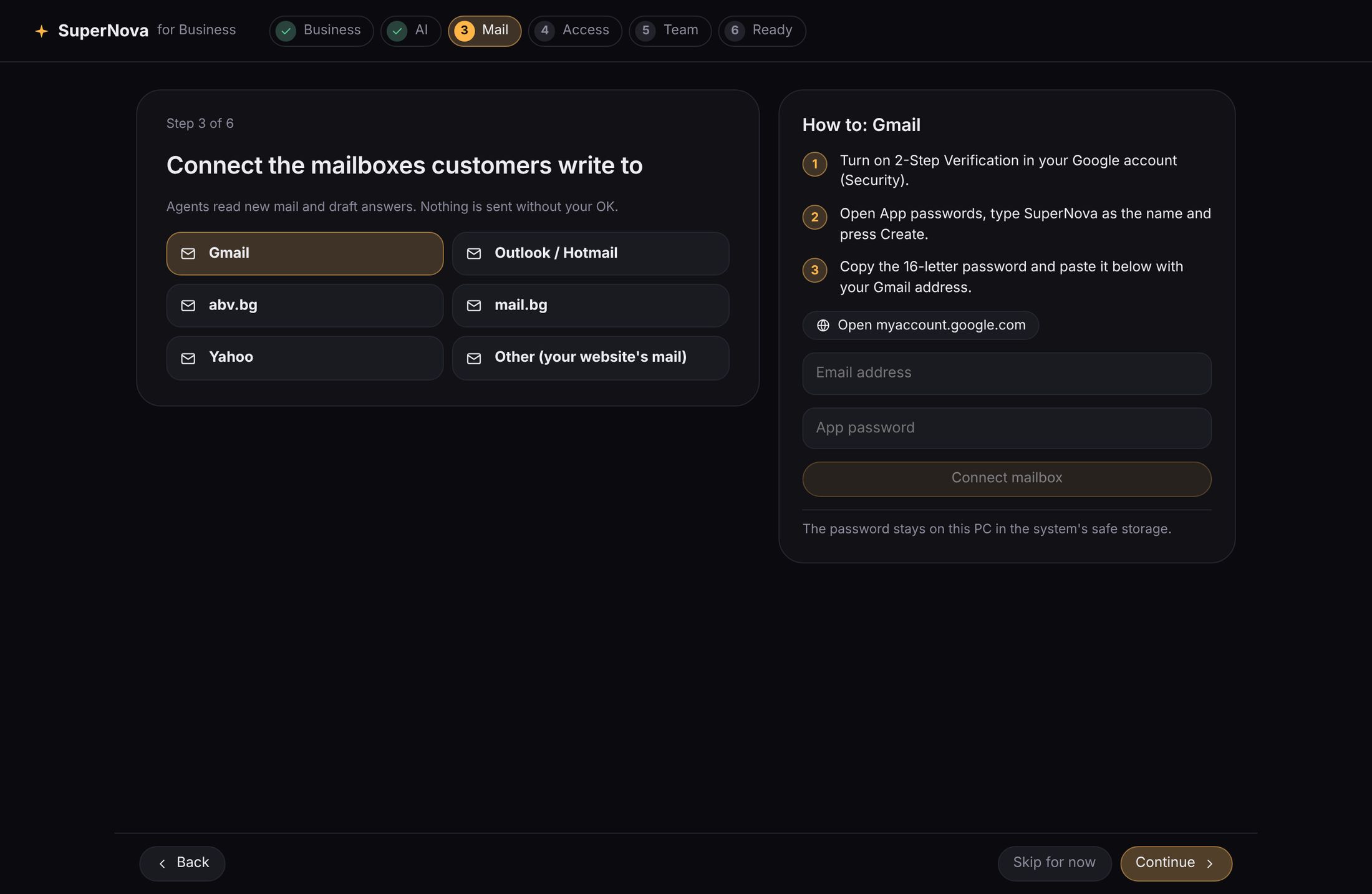
4. Connect your mailbox
SuperNova connects with an app password: a separate password just for SuperNova that you can delete at any time. Your main password is never used.
Gmail
- Turn on 2-Step Verification in your Google account, under Security.
- Search for “App passwords” in your Google account and create one named SuperNova.
- Paste the 16-letter password into SuperNova.
Outlook and Microsoft 365
- Turn on two-step verification in your Microsoft account.
- Under Security, then Advanced security options, create an app password.
- Paste it into SuperNova.
abv.bg, mail.bg, Yahoo and others
Choose your provider from the list. SuperNova fills in the server settings; you add the address and its password or app password. For Other, type the IMAP and SMTP servers from your provider's help page.
5. Connect bookings
- No program: use SuperNova's schedule. Add services (length, price, pause after), staff (who does what, which days) and opening hours.
- Cal.com or SimplyBook.me: create an API key in your account and paste it in Bookings → Setup. Agents book there directly.
- Fresha, Booksy, Treatwell, Booking.com and others: save your login in SuperNova. Agents use your web panel in the built-in browser while you watch.
6. Add your staff
Each person gets their own name and a private My SuperNova chat. Staff ask agents in the Team room and can suggest changes; only the owner changes rules. Roles soon
7. Your first task
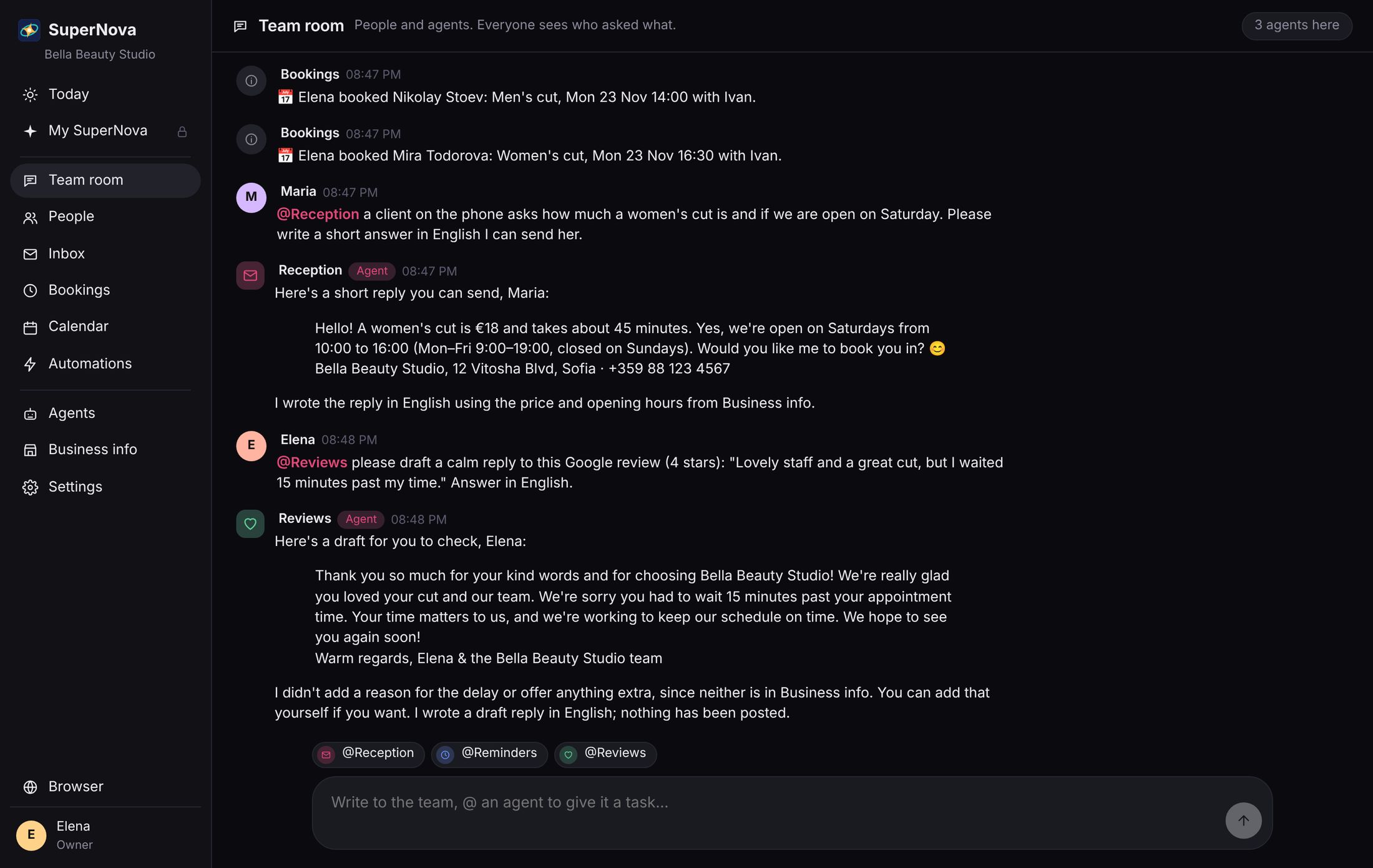
Open the Team room and write something like:
The agent answers with a draft based on your Business info. If something is missing, it says so.
8. Phone alerts in Telegram (optional, free)
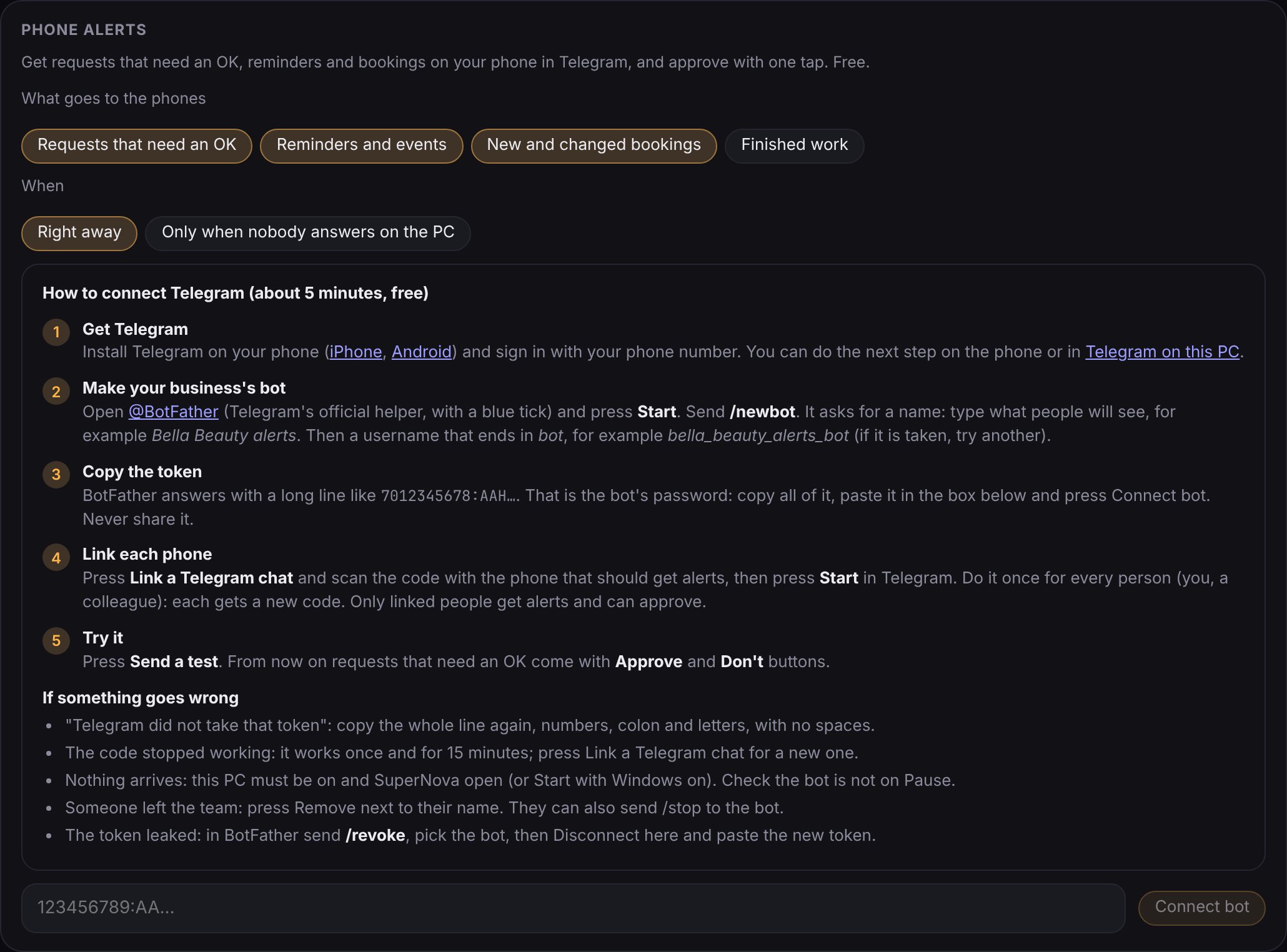
Get requests that need your OK, reminders and new or changed bookings on your phone, and approve with one tap. It uses your business's own Telegram bot, so nothing is hosted anywhere.
- Install Telegram on your phone and sign in.
- Open @BotFather (Telegram's official helper, with a blue tick), press Start and send
/newbot. Give it a name and a username that ends in bot. - Copy the token BotFather sends (a long line like
7012345678:AAH…) into SuperNova under Settings → Phone alerts and press Connect bot. - Press Link a Telegram chat and scan the code with each phone that should get alerts, then press Start in Telegram.
- Press Send a test. Choose what goes to the phones and when: right away, or only when nobody answers on the PC.
If something goes wrong
- An agent says it doesn't know a price: add it in Business info, or press Fill from website.
- Emails don't go out: check Settings → Mail. The app password may have been deleted.
- The Claude plan doesn't connect: open Claude Code once and sign in again.
- Nothing arrives in Telegram: the business computer must be on and SuperNova open, and the bot not on Pause.
Still stuck? Write to us from the app, under Settings → Help soon.